This roadmap is designed for a fresher—someone with problem-solving curiosity and a desire to become the first line of defense in IT operations. You will learn Windows, Linux, and Ticketing Systems through a structured path that mirrors how professional help desk technicians actually work in 2026. The goal is to transform you from someone who "is good with computers" into a professional who can systematically troubleshoot, document, and resolve technical issues while delivering exceptional customer service. This path prepares you for entry-level roles like IT Support Specialist, Help Desk Technician, or Desktop Support Analyst in a market where computer support specialist roles are projected to grow 6% from 2023 to 2033, with approximately 62,700 job openings annually .
The help desk is not just a job—it is the launchpad for your entire IT career. Most system administrators, network engineers, and cybersecurity professionals started at Level 1 support. The skills you learn here—troubleshooting methodology, user communication, and documentation—will serve you at every stage of your technical journey.
🗺️ Phase 1: The Mindset Shift – What Help Desk Really Means in 2026 (Weeks 1-2)
Before you learn any technical skill, understand that help desk is primarily a customer service role that happens to involve technology. Your ability to stay calm when users are frustrated, listen actively, and translate technical solutions into plain language is often more important than your technical depth .
What a Help Desk Technician Actually Does
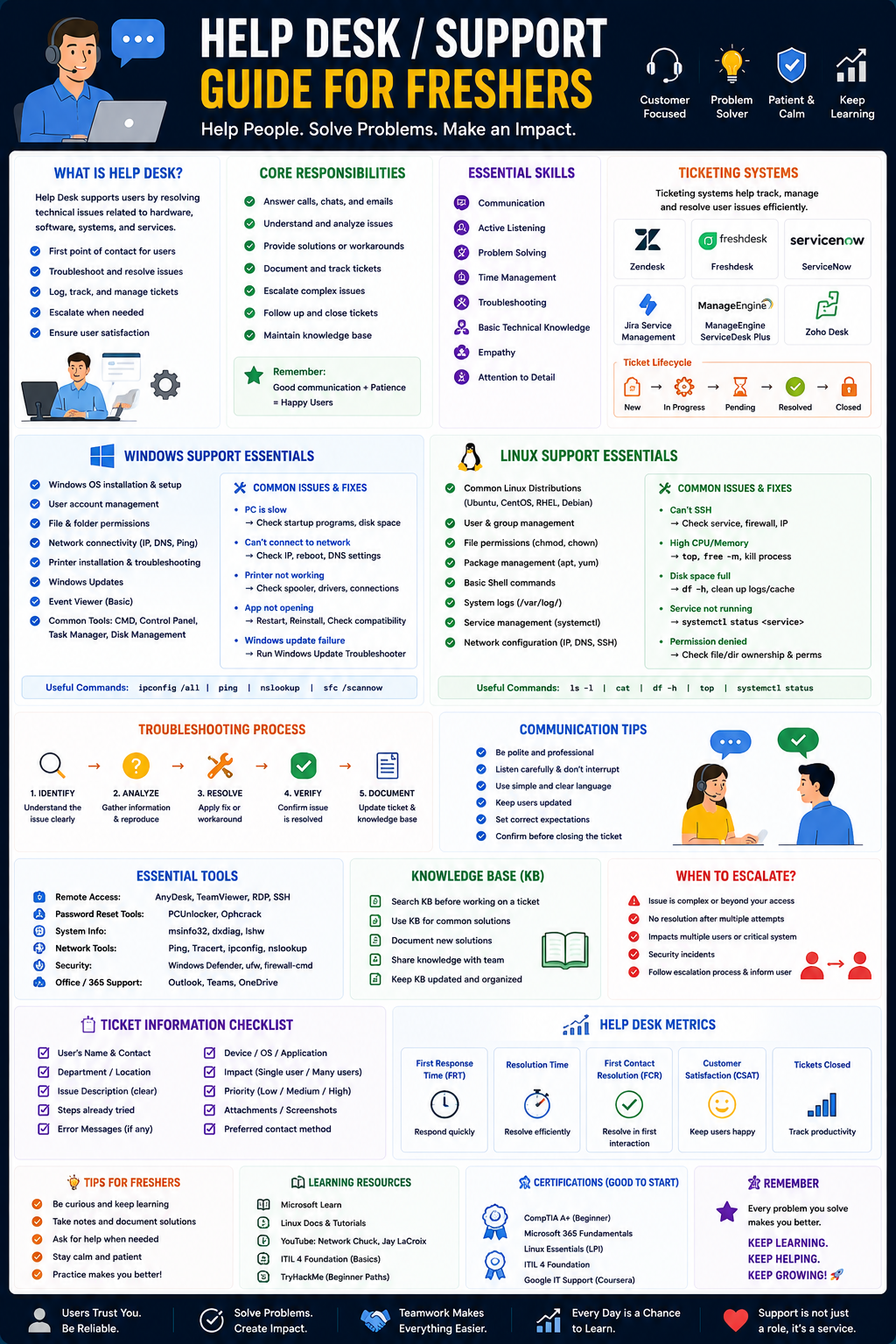
Help desk professionals are the bridge between confused users and complex technology. Your core responsibilities include :
- Ticket intake and triage: Receiving, documenting, and prioritizing incoming issues
- First-contact resolution: Solving common problems immediately without escalation
- Troubleshooting: Diagnosing hardware, software, and network issues systematically
- User communication: Explaining solutions clearly, managing expectations about resolution times
- Documentation: Creating knowledge base articles and recording solutions for future reference
- Escalation: Knowing when an issue exceeds your authority or expertise and handing it off appropriately
The 2026 IT Support Career Ladder
IT support offers a clear, structured career progression path where each level builds on the previous one :
IT Support Career Progression Path
IT support offers a clear, structured career progression path where each level builds on the previous one:
Level 1 – IT Support / Helpdesk Foundation
- Focus: Customer service + fundamental technical skills (OS troubleshooting, basic hardware, network connectivity)
Level 2 – Desktop Support
- Focus: Deeper problem-solving, complex OS/application issues, hardware diagnostics
Level 3 – System Administrator
- Focus: Infrastructure management (servers, Active Directory, virtualization, backups)
Level 4 – IT Engineer / Infrastructure Engineer
- Focus: Strategic planning, network design, cloud services (AWS/Azure/GCP), automation
Each level brings increased responsibility, technical depth, decision-making authority, and business impact. Starting at the help desk gives you the foundational knowledge that makes you successful at every subsequent level.
Prerequisite Check
You need basic computer literacy—the ability to navigate file systems, install software, and use common applications. No prior professional IT experience is required. Set up:
- A cloud account: Microsoft Azure Free Tier for virtual machine practice
- A ticketing system account: Freshdesk free tier or osTicket (open-source, self-hosted)
- Virtualization software: VirtualBox (free) for running practice VMs
Practice Goal for Phase 1: Think of a recent frustrating interaction with customer support (any industry, not just tech). Write down what made it frustrating and what would have made it better. Then think of a positive support experience and identify what the representative did well. This self-reflection is your first customer service training.
Free Resources for Phase 1:
- Google IT Support Professional Certificate (Coursera, Free Audit): A comprehensive program covering troubleshooting, customer service, networking, OS, and system administration
- CompTIA IT Fundamentals (ITF+): Entry-level certification materials covering basic IT concepts—many free study resources available online in the CompTIA ecosystem
- LinkedIn IT Support Roadmap: A detailed level-by-level breakdown of skills needed at each career stage
🖥️ Phase 2: Operating System Fundamentals – Windows & Linux (Weeks 3-8)
Operating systems are the foundation of IT support. You cannot troubleshoot what you do not understand. You need proficiency in both Windows (dominant in business environments) and Linux (dominant on servers and in modern IT infrastructure).
Windows Support (Weeks 3-5)
Windows remains the primary desktop OS in most organizations. Master these skills :
Core Windows Administration:
- Navigating Windows 10/11 interfaces and settings (Settings app vs. Control Panel)
- User account management: creating, modifying, and deleting local and domain users
- File system navigation and permissions (NTFS basics)
- System updates: managing Windows Update, understanding update rings
- Task Manager: identifying resource hogs, ending unresponsive processes
- Event Viewer: reading system, application, and security logs for error diagnosis
- Device Manager: updating drivers, troubleshooting hardware conflicts
- Registry basics: understanding what the Registry is (though you will modify it rarely)
Windows Troubleshooting Common Scenarios:
- "Blue Screen of Death" (BSOD) analysis: reading the stop code, using BlueScreenView
- Slow computer: checking Task Manager, disabling startup items, checking disk health
- Application crashes: Event Viewer analysis, reinstalling/repairing applications
- Peripheral issues: printer, scanner, external drive connectivity
- Network connectivity: ipconfig, ping, releasing/renewing DHCP, flushing DNS
Windows Command Line (Essential for advanced troubleshooting):
ipconfig /all, ipconfig /release, ipconfig /renew, ipconfig /flushdnsping, tracert, nslookup for network testingsfc /scannow for system file corruptionchkdsk for disk error checkinggpupdate /force for Group Policy updatesnet user commands for user management
Windows PowerShell Basics (Increasingly important):
PowerShell is the future of Windows administration. Learn: Get-Process, Get-Service, Get-EventLog, basic piping (|), and simple one-liners for administrative tasks .
Practice Goal: In a Windows 10/11 VM, practice creating local users, modifying permissions, and troubleshooting artificially created issues (disable a network adapter, corrupt a system file). Document your steps and solutions.
Linux Support (Weeks 6-8)
Linux is everywhere in backend IT. Most servers run Linux. As a help desk technician, you need basic command-line proficiency to support development teams and IT infrastructure .
Linux Distribution Focus: Start with Ubuntu (most beginner-friendly, excellent documentation) before exploring CentOS/RHEL (enterprise standard) .
Essential Linux Commands:
Essential Linux Commands
Navigation
cd – change directoryls – list directory contentspwd – print working directorymkdir – make directoryrmdir – remove empty directory
File Operations
cp – copy files or directoriesmv – move or rename files/directoriesrm – remove files or directoriestouch – create empty file or update timestampcat – concatenate and display file contentnano / vim – text editors
Permissions
chmod – change file permissionschown – change file owner and groupls -l – list files with detailed permissions
Processes
ps – display active processestop – real-time process monitoringkill – terminate a process by PIDsystemctl – control systemd services
Package Management
apt update && apt upgrade – update and upgrade packages (Ubuntu/Debian)yum – package manager (RHEL/CentOS)
Network
ifconfig or ip addr – display network interfaces and IP addressesping – test network connectivitynetstat – display network connections and statisticsss – socket statistics (modern replacement for netstat)
Users
adduser – add a new userpasswd – change user passwordsu – switch usersudo – execute commands with superuser privileges
System Information
uname -a – display system information (kernel, hostname, architecture)df -h – show disk space usage in human-readable formatfree -m – display memory usage in megabytesdmesg – print kernel boot and system messages
Linux Troubleshooting Scenarios:
- "Permission denied" errors: checking ownership and permissions with
ls -l - Disk full: using
df -h and du -sh to find space hogs - Service not running:
systemctl status service-name - "Command not found": checking PATH, verifying package installation
Practice Goal: In an Ubuntu VM (using VirtualBox), create a user account, install a web server (Apache/Nginx) using apt, start/enable the service with systemctl, and verify it works from a browser. This covers user management, package installation, and service management—core Linux help desk tasks.
Free Resources for Phase 2:
- Google IT Support Professional Certificate (Free Audit): Includes Windows and Linux modules with hands-on labs
- LPI Linux Essentials study materials: Available through the Linux Professional Institute website—covers command line basics
- Indonesian Helpdesk Training Syllabus: Comprehensive breakdown of Windows and Linux support skills including specific commands and troubleshooting scenarios
- VirtualBox: Free virtualization software for running Windows and Linux VMs on your existing computer
🎫 Phase 3: Ticketing Systems – The Heart of Help Desk Operations (Weeks 9-12)
Ticketing systems are where all the work happens. Every incoming request becomes a ticket, and your job is to move that ticket through its lifecycle from intake to resolution .
The Ticket Lifecycle – Master These Stages
Every ticket follows the same core stages regardless of which software you use. Understanding this flow is the single most important process skill for help desk work :
Stage 1: Intake
The ticket is created when a user reports an issue. Key skills :
- Extracting the real problem from often vague descriptions
- Capturing essential information: user contact info, affected system, steps to reproduce, urgency
- Selecting the correct category/help topic for routing
- Setting initial priority based on business impact (not user volume)
Example: User says "My computer is slow." Intake requires asking clarifying questions: When did it start? Is it slow all the time or intermittently? Which applications are slow?
Stage 2: Assignment and Communication
The ticket is assigned to the appropriate person or team. Key skills :
- Determining the correct department (Desktop, Network, Applications)
- Assigning to the right individual based on skillset and workload
- Setting SLA (Service Level Agreement) expectations—how quickly the user should expect resolution
- Communicating assignment and expected timeline back to the user
Stage 3: Working the Issue
The technician troubleshoots and resolves, or escalates if needed. Key skills :
- Systematic troubleshooting following documented procedures
- Updating ticket notes with every action taken
- Managing user expectations with regular status updates
- Knowing when to escalate (time exceeded, out of skill scope, requires authorization)
Stage 4: Resolution
The issue is fixed and the ticket is closed. Key skills :
- Verifying resolution with the user before closing
- Documenting the root cause and solution for the knowledge base
- Adding resolution notes to the ticket
- Closing the ticket and notifying the user
Hands-On Practice with osTicket
osTicket is free, open-source ticketing software used by thousands of organizations. You can set it up on a local Windows machine (using IIS) or Azure VM and practice the entire ticket lifecycle .
Step-by-Step osTicket Lab:
- Installation: Follow the installation guide on the osTicket website. For cloud practice, deploy a Windows 10 VM in Azure Free Tier, install IIS, and install osTicket
- Role Simulation: Create different user accounts :
- End users (like Karen or Ken) who submit tickets
- Agents (like Luke Skywalker) who work tickets
- Administrators who assign tickets and manage the system
- Ticket Scenarios to Practice :
- "Entire mobile online banking system is down" (High priority, potential escalation)
- "Accounting department needs Adobe upgrade" (Standard software request)
- "When are we getting a hardware refresh?" (Informational, low priority)
- Complete Workflow Walkthrough :
- An end user creates a ticket describing their issue
- Administrator reviews, sets priority, assigns to appropriate Agent
- Agent communicates with user, works the issue, documents steps
- Agent resolves ticket, adds resolution notes, closes
Popular Ticketing Systems in the Real World
While osTicket is great for learning, real organizations use various systems. Understand their commonalities rather than memorizing each interface :
- Freshdesk: Free tier available for learning—popular with SMBs
- ServiceNow: Enterprise standard (too expensive for personal learning, but concepts transfer)
- Jira Service Management: Popular with tech companies (free tier for up to 3 agents)
- Zendesk: Widespread across many industries
- OTRS: Open-source alternative to osTicket
What You Need to Know for All Ticketing Systems:
- Creating tickets (manual and email-to-ticket)
- Searching and filtering tickets by status, priority, assignee
- Adding internal notes (visible to IT team) vs. public replies (visible to user)
- Attaching files to tickets (screenshots, logs)
- Closing tickets with resolution notes
- Reporting: ticket volume, time-to-resolution, satisfaction ratings
Practice Goal: Set up osTicket on an Azure free tier VM or your local machine. Create 5 practice tickets as an end user. As the administrator, assign them to different agents. As an agent, resolve each ticket and document the resolution. Take screenshots of the ticket at each lifecycle stage for your portfolio .
Free Resources for Phase 3:
- osTicket Ticket Lifecycle Demo (GitHub): Complete walkthrough from intake to resolution with step-by-step screenshots
- Indonesian Helpdesk Training: Detailed ticketing system module covering creation, processing, prioritization, and closing tickets with proper documentation
- Freshdesk Free Tier: Sign up for a free account to practice on a real, modern ticketing system
- Jira Service Management Free Tier: Atlassian offers free plans for up to 3 agents
🔧 Phase 4: Troubleshooting Methodology & Core Technical Skills (Weeks 13-16)
Troubleshooting is not guesswork—it is a systematic process. The best technicians follow a methodology rather than jumping to conclusions .
The Systematic Troubleshooting Framework
Step 1: Identify the problem
- Gather information from the user (open-ended questions first: "What happened just before the issue started?")
- Reproduce the issue if possible
- Determine if this is a known issue (check knowledge base)
Step 2: Establish a theory of probable cause
- What changed? (software update, new hardware, user action)
- What is the simplest explanation? (Occam's Razor applies in IT)
Step 3: Test the theory
- Perform one change at a time (never change multiple variables simultaneously)
- Document what you tried and the result
- If theory is confirmed, proceed to resolution
- If theory is disproven, establish a new theory
Step 4: Establish a plan of action
- Identify the specific steps required to resolve
- Consider any potential side effects (data loss, user downtime)
Step 5: Implement the solution
- Follow your plan
- Document each step
Step 6: Verify full system functionality
- Confirm the original issue is resolved
- Test related functionality (what else might have been affected?)
Step 7: Document findings
- Add to ticket resolution notes
- If this was a new issue, create a knowledge base article
Technical Domains to Master for Help Desk
Hardware Support
- Identify common hardware components (CPU, RAM, storage drives, motherboard, PSU)
- Basic upgrades: adding RAM, replacing storage drives (HDD to SSD)
- Peripheral troubleshooting: printers (common frustration point), monitors, docking stations
- Understanding error beep codes (varies by manufacturer)
Network Connectivity
- IP addressing basics: IPv4 vs. IPv6, public vs. private ranges
- DHCP: how devices get IP addresses automatically
- DNS: how domain names become IP addresses
- Common troubleshooting commands: ipconfig, ping, tracert/traceroute, nslookup
- Understanding the difference between "no internet" (router issue) and "Wi-Fi not connecting" (device or access point issue)
Application Support
- Microsoft Office troubleshooting: Outlook profile repair, Excel formula errors, Word document corruption
- Web browser issues: clearing cache, resetting settings, extension conflicts
- Email client configuration: IMAP vs. POP3, server settings, authentication issues
- Understanding SSO (Single Sign-On): why users sometimes can't log into multiple systems
Basic Security Awareness
- Recognizing phishing emails: urgency, suspicious links, sender verification
- Malware removal workflow: disconnect from network, run scans, quarantine, educate user
- Password best practices: complexity requirements, expiration policies, MFA enrollment
- What information should never be shared in a ticket (passwords, PII)
Backup and Recovery
- Understanding the 3-2-1 backup rule
- File recovery from Windows Backup, OneDrive, or third-party solutions
- Recognizing data loss scenarios that require escalation
Practice Goal: Create a troubleshooting "cheat sheet" for the 10 most common IT issues (printer offline, "no internet" but Wi-Fi connected, computer slow, forgotten password, email not sending, application crashing, blue screen, can't connect to VPN, mouse/keyboard not working, file missing). Practice diagnosing each as if on a call with a user who is not technical.
Free Resources for Phase 4:
- IT Support/Helpdesk Operations Course Outline: Comprehensive 10-day curriculum covering troubleshooting methodology, network essentials, OS support, and security fundamentals
- Indonesian Helpdesk Hard Skills Training: Detailed technical skills breakdown including hardware, OS, applications, security, and backup/recovery with practical examples
- CompTIA Network+ (Free study resources): Networking fundamentals—widely available free materials online
- CompTIA Security+ (Free study resources): Security basics for IT support—strongly recommended before entering any IT role
🤖 Phase 5: AI Tools for Help Desk – The 2026 Game Changer (Weeks 17-18)
AI is not replacing help desk technicians. It is making good technicians much more productive. In 2026, AI assistants are embedded in most enterprise ticketing systems, and knowing how to use them effectively is becoming a baseline expectation .
CompTIA AI Help Desk Essentials
CompTIA has launched a specialized course for frontline help desk professionals who now have access to AI chatbots but may not know how to use them effectively. The "AI fluency gap" means technicians know the tools exist but are unsure how to apply them .
What the Course Covers:
- Ticket intake and triage: Using AI to summarize incoming tickets into clear problem statements, extract urgency and impact, and generate clarifying questions for users
- AI-assisted troubleshooting: Applying AI to analyze symptoms, surface likely causes, and transform vendor documentation into structured troubleshooting checklists
- Log and error message analysis: Using AI to scan logs for key events and error codes, translating technical messages into plain language explanations
- User communication: Drafting and adapting customer-facing responses, turning internal notes into clear user updates
- Documentation and knowledge reuse: Converting resolved tickets into structured knowledge base articles
- Responsible AI use: Understanding what information should never be shared with AI chatbots, verification habits, and human-in-the-loop decision-making
Why This Matters for Freshers:
In 2026, employers expect help desk candidates to have basic AI literacy. Listing "AI Help Desk Essentials" or equivalent training on your resume signals that you understand how to use AI tools effectively, securely, and responsibly .
Practical AI Use for Help Desk
Free AI Tools to Practice With:
- ChatGPT (Free tier): Practice summarizing user complaints into ticket descriptions, generating troubleshooting steps, and drafting user-friendly explanations of technical issues
- Claude (Free tier): Similar capabilities, excellent at explaining technical concepts simply
Practice Workflow with AI:
- Take a complex user complaint (e.g., "My computer has been slow since Tuesday and IT never helps me")
- Ask AI to summarize the key facts and suggest clarifying questions
- Ask AI to generate a troubleshooting checklist for "slow computer"
- Compare AI's suggestions to standard procedures
- Always verify—AI can hallucinate. Never trust AI output that you cannot validate
The Most Important Rule: AI is your copilot, not your captain. You are responsible for every recommendation you act on. Verify everything.
Free Resources for Phase 5:
- CompTIA AI Help Desk Essentials: Vendor-neutral, scenario-driven training focused on applying AI to real help desk workflows. Includes built-in competency assessment and CompTIA CompCert credential upon completion
- CompTIA AI Prompting Essentials (Role-agnostic): General prompting techniques that apply across job functions—helpful foundation before role-specific training
📚 Phase 6: Certifications & Portfolio Building (Weeks 19-20)
Certifications validate your knowledge to employers. While experience matters more, certifications help you get past HR filters for entry-level roles.
The Certification Roadmap for Help Desk
CompTIA A+ – The industry standard entry-level certification. Covers hardware, networking, mobile devices, OS troubleshooting, security, and operational procedures. Widely recognized by employers as proof of foundational IT knowledge .
CompTIA Network+ – Recommended after A+. Covers networking concepts, infrastructure, operations, security, and troubleshooting. Helpful for Level 2+ roles .
LPI Linux Essentials – Validates basic Linux command line skills. Increasingly valuable as IT infrastructure shifts toward Linux .
CompTIA AI Help Desk Essentials – The newer AI-focused certification specifically for help desk professionals. Validates applied proficiency in using AI tools for ticketing and troubleshooting .
Microsoft Certified: Windows Client – Windows-specific certification validating modern desktop administration skills .
Building Your Help Desk Portfolio
You do not need professional experience to demonstrate help desk capability. Create these portfolio artifacts:
Portfolio Project 1 (Ticket Lifecycle Documentation):
- What: Set up osTicket on a VM. Create 5 realistic tickets. Document the complete lifecycle of each with screenshots: ticket creation, assignment, communication notes, troubleshooting steps, resolution verification, closure notes.
- Why: This proves you understand the ticketing workflow and can document professionally.
Portfolio Project 2 (Troubleshooting Case Studies):
- What: Write 3 detailed case studies of common IT issues you have solved in your lab (or for friends/family). For each: symptoms, questions asked, diagnostic steps performed, root cause, resolution, prevention recommendations.
- Why: Shows systematic thinking and documentation skills—critical for help desk roles.
Portfolio Project 3 (Knowledge Base Article):
- What: Write a user-friendly KB article for a common issue (e.g., "How to reset your password" or "What to do when your printer is offline"). Write for a non-technical audience.
- Why: Demonstrates communication skills and ability to translate technical solutions into plain language.
Optional Experience Building:
- Volunteer: Offer IT support to a local nonprofit, school, or religious organization. Even 5-10 hours provides real experience .
- Internship: Seek IT internships or apprenticeships. Many organizations offer paid IT support training programs .
- Community: Join IT support forums (Reddit's r/ITCareerQuestions, Tech Support forum). Help others with their issues while learning from experienced professionals.
📚 Consolidated Resource Toolkit
Completely Free, Comprehensive Resources
Google IT Support Professional Certificate (Coursera, Free Audit) is a highly structured, complete program covering troubleshooting, customer service, networking, OS (Windows and Linux), and system administration. Auditing is free—you only pay if you want the certificate .
CompTIA AI Help Desk Essentials is a scenario-driven training program designed specifically for help desk professionals learning to apply generative AI chatbots to real service desk workflows. Vendor-neutral, aligned to common ITSM workflows. Includes built-in competency assessment (pass to earn CompTIA CompCert credential) .
GitHub osTicket Ticket Lifecycle Demonstrations provide complete, step-by-step walkthroughs of the ticket lifecycle from intake through resolution. Follow along with screenshots and replicate the workflow in your own lab .
Roadmap to Become an IT-Support / System Administrator (LinkedIn) is a detailed 6-stage roadmap from foundation to career growth. Includes specific skills per stage, recommended certifications, and free resource links .
Levels of IT Support & Key Skills (LinkedIn) is a clear breakdown of the Level 1-4 career progression with specific skills and responsibilities at each level .
Indonesian IT Helpdesk Hard Skill Training provides an extremely detailed syllabus covering Windows 10/11 administration, Linux basics (specific commands like chmod, systemctl, apt), Microsoft Office troubleshooting, ticketing systems (Freshdesk, Jira, OTRS), cybersecurity basics (phishing, malware), and backup/recovery—plus communication modules with role-play scenarios .
Lackawanna College IT Helpdesk Career Guide covers the three key steps: build technical skills (CompTIA A+), sharpen communication skills, and gain practical experience (internships, volunteering). Includes Bureau of Labor Statistics data (6% growth, 62,700 annual openings, $59,240 median pay) .
IT Support/Helpdesk Operations 10-Day Course provides a complete 10-day course outline covering introduction to IT support, customer service excellence, technical fundamentals, troubleshooting methodology, networking essentials, OS support, application support, IT security fundamentals, helpdesk tools (ITIL, ticketing), and advanced topics (cloud, virtualization, asset management) .
Free Practice Platforms
VirtualBox (Free) – Run Windows and Linux VMs on your existing computer. Essential for hands-on OS practice without affecting your main system .
Microsoft Azure Free Tier – Includes 12 months of popular free services, including Windows VMs ideal for setting up osTicket and practicing remote support .
Freshdesk Free Tier – Practice on a real, modern ticketing system used by thousands of organizations.
osTicket (Open-source, Free) – Self-host ticketing system for learning. Install on local Windows with IIS or on Azure VM.
ChatGPT / Claude (Free tiers) – Practice AI-assisted troubleshooting, ticket summarization, and user communication drafting .
Paid Certifications (Consider After Free Learning)
CompTIA A+ – The gold standard entry-level certification. Proves competency in hardware, networking, OS troubleshooting, security, and operational procedures. Recommended by employers and educational institutions as the first certification for aspiring help desk professionals .
CompTIA Network+ – Validates networking knowledge. Helpful for Level 2 roles and beyond .
LPI Linux Essentials – Certifies basic Linux command line proficiency .
Microsoft Certified: Windows Client – Windows-specific certification for modern desktop administration .
💼 Career Application & Next Steps
Help desk is the most common entry point into IT careers. The skills you learn here open doors to every other specialty—from security to cloud to networking.
1. The Fresher Entry Point
Titles You Can Target Immediately:
- IT Support Specialist / Help Desk Technician (Level 1): Entry-level. Focus on ticket handling, user communication, basic troubleshooting. Requires customer service skills + fundamental technical knowledge
- Desktop Support Analyst (Level 2 target after 1-2 years): More complex troubleshooting, on-site and remote support, system configurations
- Service Desk Analyst: Similar to Help Desk, often in larger organizations with more structured processes
Industries Actively Hiring:
- Managed Service Providers (MSPs) – Support multiple client organizations
- Healthcare – Hospitals, clinics (24/7 support needs)
- Financial Services – Banks, insurance companies
- Technology Companies – SaaS, software vendors
- Education – Universities, K-12 school districts
- Government – Federal, state, local agencies
Salary Expectations (US, 2026):
- Entry-level help desk: 35,000−35,000−50,000 depending on location and certifications
- Median for computer support specialists: $59,240
- Level 2 Desktop Support: 50,000−50,000−65,000
- Level 3 System Administrator: 70,000−70,000−95,000
2. The Common Career Progression Path
The Common Career Progression Path
- 0-18 months – Level 1 Help Desk
- Key Activities: Tickets, user support, basic troubleshooting, escalation
- 12-24 months – Level 2 Desktop Support
- Key Activities: Complex issues, on-site support, some system administration tasks
- 2-4 years – Level 3 System Administrator
- Key Activities: Server management, Active Directory, backups, scripting, infrastructure
- 4-7 years – Specialization (Security, Cloud, Networking) or IT Management
- Key Activities: Strategic projects, architecture, team leadership
Many professionals use help desk as a launchpad into specialized IT roles. The key is continuous learning and certification advancement.
3. Build Your Job Application Package
Resume Tips for Help Desk (No Experience):
- Create a "Projects" section with your osTicket lab, troubleshooting case studies, and KB articles
- Include any customer service experience (retail, food service, any role where you helped people)
- List certifications (even "in progress" CompTIA A+)
- Include technical skills: Windows 10/11, Linux command line, Ticketing Systems (osTicket, Freshdesk), Remote Desktop, Basic Networking (TCP/IP, DNS, DHCP)
Cover Letter Narrative:
- Frame your lack of professional experience positively: "I have built a complete home lab environment where I practice Windows and Linux administration, ticketing system workflows, and systematic troubleshooting. I am confident in my ability to handle Level 1 tickets and escalate appropriately."
- Emphasize soft skills: patience, clear communication, ability to translate technical concepts for non-technical users
LinkedIn Strategy:
- List your lab projects as experience
- Post about what you are learning (e.g., "Today I set up osTicket and walked through a complete ticket lifecycle. Understanding SLA management and escalation workflows is fascinating!")
- Connect with IT recruiters and help desk managers
4. The Interview Question You Will Be Asked
Question: "A user calls and says they can't access the internet. Their email works. What do you do?"
Your Answer: "If email works but browser does not, the issue is almost certainly DNS. Email clients often use hard-coded server addresses, while web browsing relies on DNS to resolve domain names. I would first ask the user to open Command Prompt and run ping 8.8.8.8. If that works but ping google.com fails, DNS is confirmed. The fix is typically flushing DNS with ipconfig /flushdns, checking proxy settings, or verifying the DNS server configuration. If the user is remote, I would guide them through these steps verbally or via screen share. If the issue persists, I would check if it is affecting multiple users—if so, I would escalate to the network team for DNS server investigation. I would document the entire process in the ticket and, if this was a recurring issue, suggest a knowledge base article for first-level triage."
Why This Works: You identified that email and HTTP use different resolution methods, named specific troubleshooting commands, distinguished between local and systemic issues, and mentioned documentation—demonstrating both technical knowledge and process awareness.
5. Sample Resume Entry (No Experience Version)
text
IT Support Candidate | Home Lab Portfolio

TECHNICAL SKILLS
- Operating Systems: Windows 10/11 (installation, configuration, troubleshooting), Ubuntu Linux (command line)
- Networking: TCP/IP, DNS, DHCP, ping, tracert, ipconfig, nslookup
- Ticketing Systems: osTicket (self-hosted lab), Freshdesk (familiarity)
- Tools: VirtualBox, Remote Desktop, Microsoft Azure (basic)
- Security: Phishing recognition, malware response workflow, password best practices

PROJECTS

Help Desk Simulation with osTicket (Azure VM)
- Deployed osTicket on Windows VM in Azure Free Tier
- Created 10 practice tickets covering common scenarios (network connectivity, software requests, hardware inquiries)
- Managed complete ticket lifecycle: intake → assignment → resolution → closure
- Documented each ticket with troubleshooting steps and resolution notes
- Implemented SLA-driven prioritization for High vs. Normal severity tickets

Troubleshooting Case Study: DNS Resolution Failure
- Simulated scenario where email works but web browsing fails
- Diagnosed using ping 8.8.8.8 (success) vs. ping google.com (failure)
- Resolved using ipconfig /flushdns and verified DNS server configuration
- Created KB article for future technicians

CERTIFICATIONS (In Progress)
- CompTIA A+ (study complete, exam scheduled)

EDUCATION
- Google IT Support Professional Certificate (Free Audit, in progress)
- CompTIA AI Help Desk Essentials (planned)

SOFT SKILLS
- Customer service: 2+ years retail/restaurant experience (or volunteer work)
- Patience and active listening
- Ability to explain technical concepts in plain language
🎯 Your Next Steps for This Week
Do not try to learn Windows, Linux, ticketing, and AI simultaneously. Build momentum with small wins.
Step 1: Set Up Your Environment (Day 1)
- Install VirtualBox on your computer
- Download Ubuntu Server ISO
- Create a free Microsoft Azure account (requires credit card verification but includes free tier)
- Sign up for Freshdesk free tier
- Create a GitHub account for portfolio hosting
Step 2: Start a Structured Course (Week 1)
Enroll in the Google IT Support Professional Certificate (free audit) and complete the first module on troubleshooting and customer service . This gives your learning structure.
Step 3: Set Up osTicket (Week 1-2)
Follow the GitHub walkthrough to install osTicket on a local Windows VM or Azure VM . Successfully access the admin and end-user portals.
Step 4: Walk Through the Ticket Lifecycle (Week 2)
Using the osTicket lab guide , create tickets as an end user, assign them as an administrator, resolve them as an agent. Document each step with screenshots.
Step 5: Learn One Linux Command Per Day (Ongoing)
Spend 15 minutes daily practicing Linux commands in your Ubuntu VM. By the end of the month, you will have 30 commands memorized.
Step 6: Take the CompTIA AI Help Desk Essentials (Week 3-4)
Complete this shorter, role-specific training to understand how AI fits into help desk workflows. Add the CompTIA CompCert to your resume .
Step 7: Apply for Entry-Level Roles (Week 4 and ongoing)
Do not wait until you feel "ready." Apply for help desk, service desk, and IT support specialist roles. Each application and interview teaches you something.
The moment you resolve your first real ticket—helping a actual user with a real problem, documenting the solution, and seeing their satisfaction—you will understand the value of IT support. You are not just fixing computers. You are enabling people to do their jobs. That is the heart of this profession. Start building your lab today.




 Group / 1: 1 Sessions